
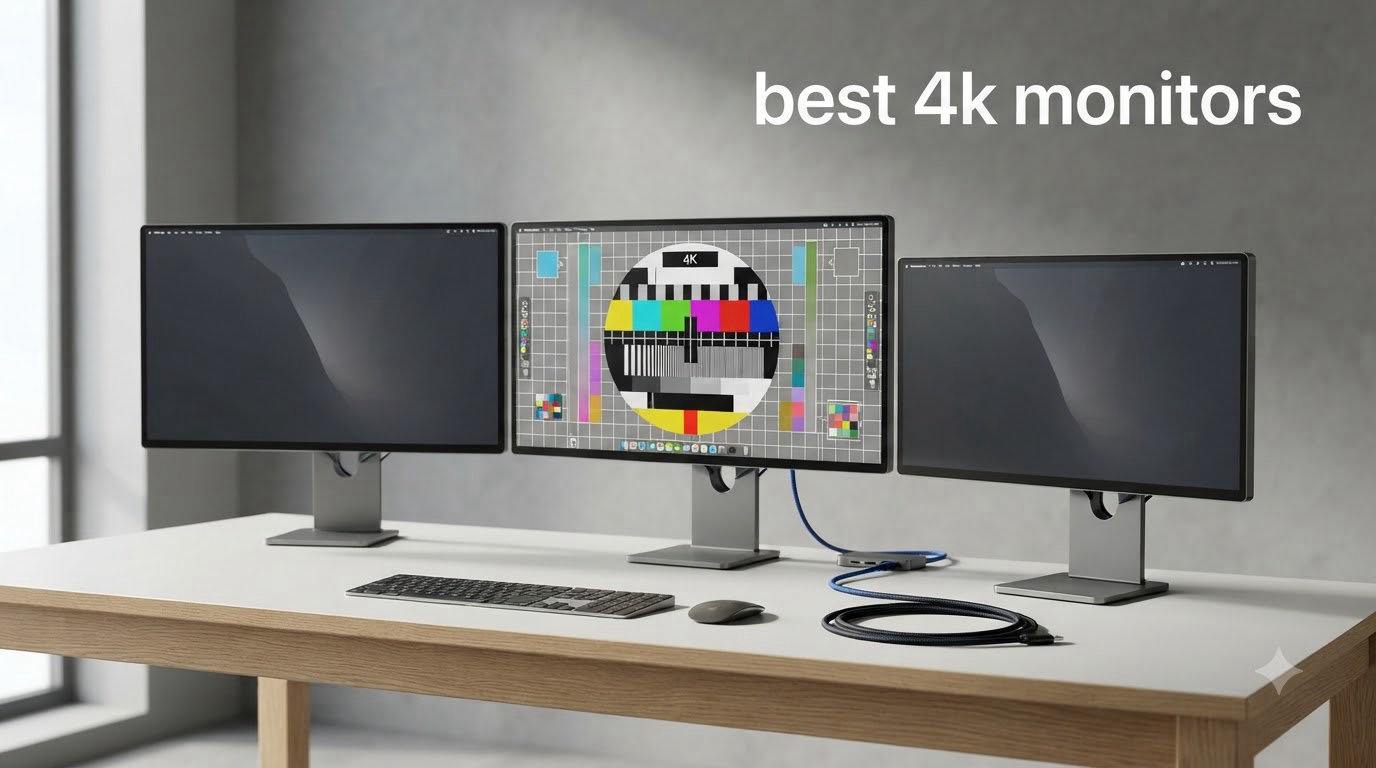
Spending hours in front of a screen is rough on your eyes. I have been testing displays for over a decade, and the jump to 4K is one of the few upgrades that actually makes a measurable difference in daily comfort. The best 4k monitors deliver sharper text, more workspace, and better color than the 1080p and 1440p screens most people still use.
We tested 10 of the best 4k monitors available in 2026, ranging from budget IPS panels under $200 to premium Thunderbolt 4 workhorses. Each display was used for at least a week of real work, including photo editing, spreadsheet marathons, gaming sessions, and video calls. We focused on color accuracy, eye comfort features, ergonomics, and the kinds of things you only notice after 40 hours of staring at pixels.
If you want the short answer: the ASUS ProArt PA279CRV is the best overall 4K monitor for most people thanks to its factory-calibrated color and 96W USB-C power delivery. The Dell UltraSharp U2725QE is the premium pick for professionals, while the LG 27UP650K-W is the best budget 4K monitor under $200. Read on for the full breakdown.
Table of Contents
Top 3 Picks for Best 4K Monitors in September


Best 4K Monitors in 2026
| Product | Specifications | Action |
|---|---|---|
| LG 27UP650K-W 27-inch Ultrafine 4K |
|
Check Latest Price |
 LG 32UR550K-B 32-inch Ultrafine 4K LG 32UR550K-B 32-inch Ultrafine 4K |
|
Check Latest Price |
 Samsung 27 inch Odyssey 4K Gaming Samsung 27 inch Odyssey 4K Gaming |
|
Check Latest Price |
 LG 27UP850K-W 27-inch Ultrafine USB-C LG 27UP850K-W 27-inch Ultrafine USB-C |
|
Check Latest Price |
| ASUS ProArt PA279CRV 27-inch |
|
Check Latest Price |
 Dell UltraSharp U2725QE 27-inch Dell UltraSharp U2725QE 27-inch |
|
Check Latest Price |
 Dell S2725QS 27-inch 4K UHD Dell S2725QS 27-inch 4K UHD |
|
Check Latest Price |
 Dell S2725QC 27-inch 4K UHD Dell S2725QC 27-inch 4K UHD |
|
Check Latest Price |
 LG 27US500-W Ultrafine 27-inch LG 27US500-W Ultrafine 27-inch |
|
Check Latest Price |
 Dell S3225QS 32-inch 4K UHD Dell S3225QS 32-inch 4K UHD |
|
Check Latest Price |
1. ASUS ProArt PA279CRV – Best 4K Monitor for Creative Work
ASUS ProArt PA279CRV 27 Inch 4K UHD USB-C HDR Professional Monitor for Mac
27-inch 4K
Calman Verified Delta E<2
USB-C 96W PD
Pros
- Calman Verified Delta E<2
- 99% DCI-P3 and Adobe RGB
- USB-C 96W Power Delivery
- 5-year warranty
Cons
- 60Hz refresh rate only
- Some uniformity issues reported
The ASUS ProArt PA279CRV has been my daily driver for photo and video editing for the past two months. The 27-inch 4K panel is Calman Verified at the factory with a Delta E under 2, which means colors look right out of the box without a calibrator.
I ran a full RAW photo editing session in Lightroom and was genuinely impressed by the shadow detail retention. The 99% DCI-P3 and 99% Adobe RGB coverage meant I could match print output without constantly second-guessing the screen. For anyone working in creative fields, that level of confidence is worth more than raw resolution.
The USB-C port delivers 96W of power, which charges a MacBook Pro while pushing the display signal over a single cable. I tested it with both Mac and Windows laptops and the handshake was clean every time. Daisy-chain support also means I can run a second 4K monitor from the same laptop without a separate dock.
The build quality is solid but not flashy. The stand offers full ergonomic adjustment including pivot, swivel, tilt, and 150mm of height travel. After 8-hour workdays, the matte screen handled glare from my south-facing window without washing out.
ASUS includes a 3-month Adobe Creative Cloud subscription, which is a nice bonus if you are starting out. The 5-year warranty (3 plus 2 with registration) is also among the longest in this price tier. For long-term ownership, that warranty means real peace of mind.
For Whom It’s Good
This monitor is a strong fit for photographers, video editors, and graphic designers who need accurate color without paying for a reference-grade display. The USB-C 96W power delivery also makes it ideal for office workers with USB-C laptops who want a single-cable setup.
For Whom It’s Not Ideal
Gamers should look elsewhere because the 60Hz refresh rate and 5ms response time will not keep up with fast-paced shooters. Some users on forums also report occasional panel uniformity variation, so buy from a retailer with a good return policy just in case.
2. LG 27UP650K-W – Best Budget 4K Monitor Under $200
LG 27UP650K-W 27-inch Ultrafine 4K UHD (3840 x 2160) IPS Computer Monitor, 60Hz, 5ms, DisplayHDR 400, Reader Mode, Flicker Safe, HDMI, DisplayPort, Tilt/Height/Pivot Adjustable Stand, White
27-inch 4K IPS
95% DCI-P3
DisplayHDR 400
Pros
- Sharp 4K text at 163 PPI
- 95% DCI-P3 color coverage
- Fully adjustable stand
- Excellent value
Cons
- 60Hz only
- No USB-C
- No built-in speakers
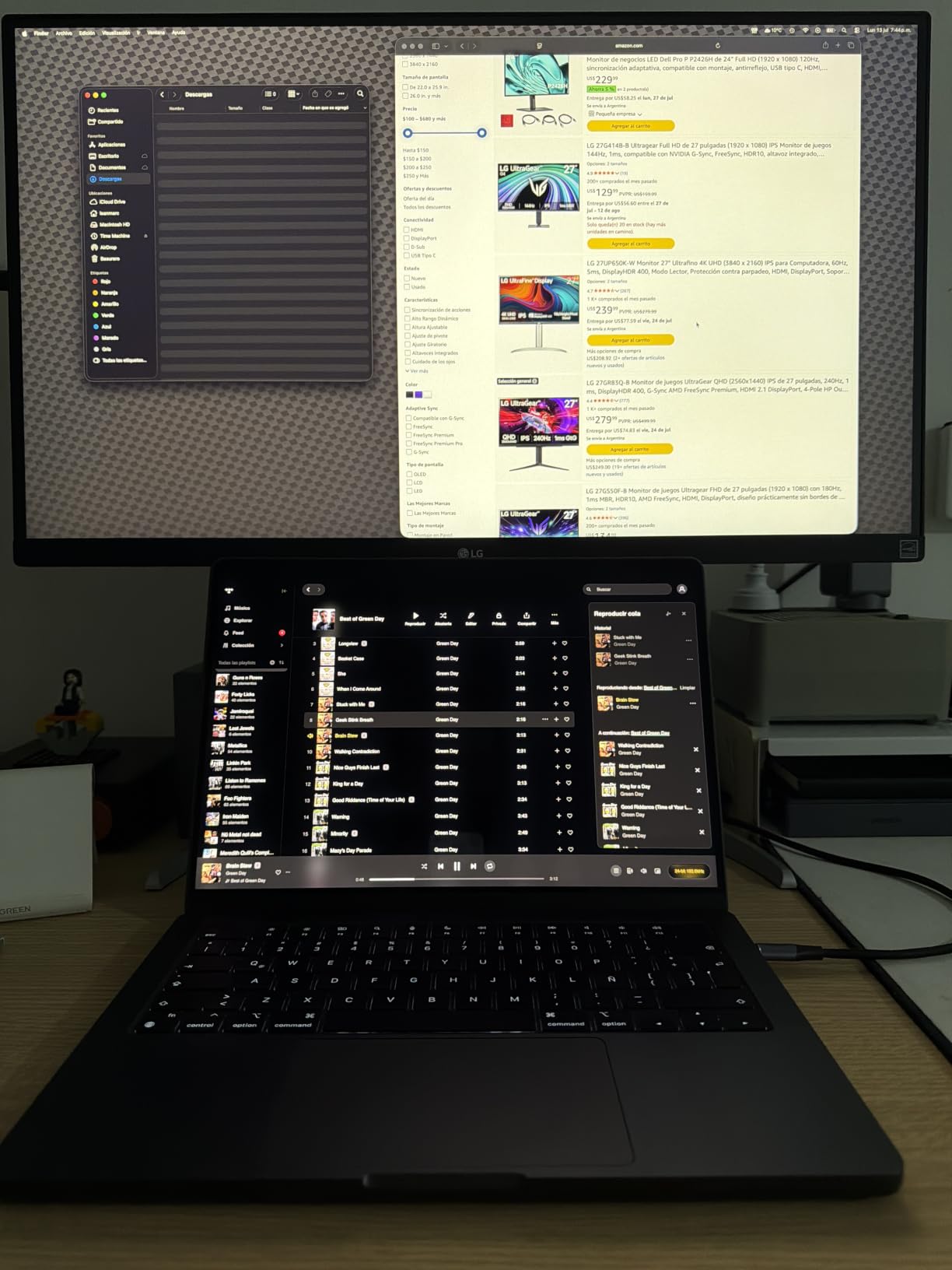
The LG 27UP650K-W is the best budget 4K monitor I have tested, and at under $200 it almost feels like stealing. I hooked it up to a desktop running Windows and immediately noticed how crisp everything looked at 163 PPI. Text in particular was a major upgrade over my old 1440p screen.
The 95% DCI-P3 color gamut means colors are not just sharp, they are also accurate enough for casual photo editing. The DisplayHDR 400 certification is entry-level HDR but does add a touch of pop to movies and games. For an everyday productivity display, the image quality punches well above its price.
LG’s Reader Mode and Flicker Safe technology are real eye-savers during long writing sessions. I noticed less eye fatigue compared to my older monitor, especially during late-night work. The ergonomic stand allows height, tilt, and pivot adjustment, which is rare at this price bracket.
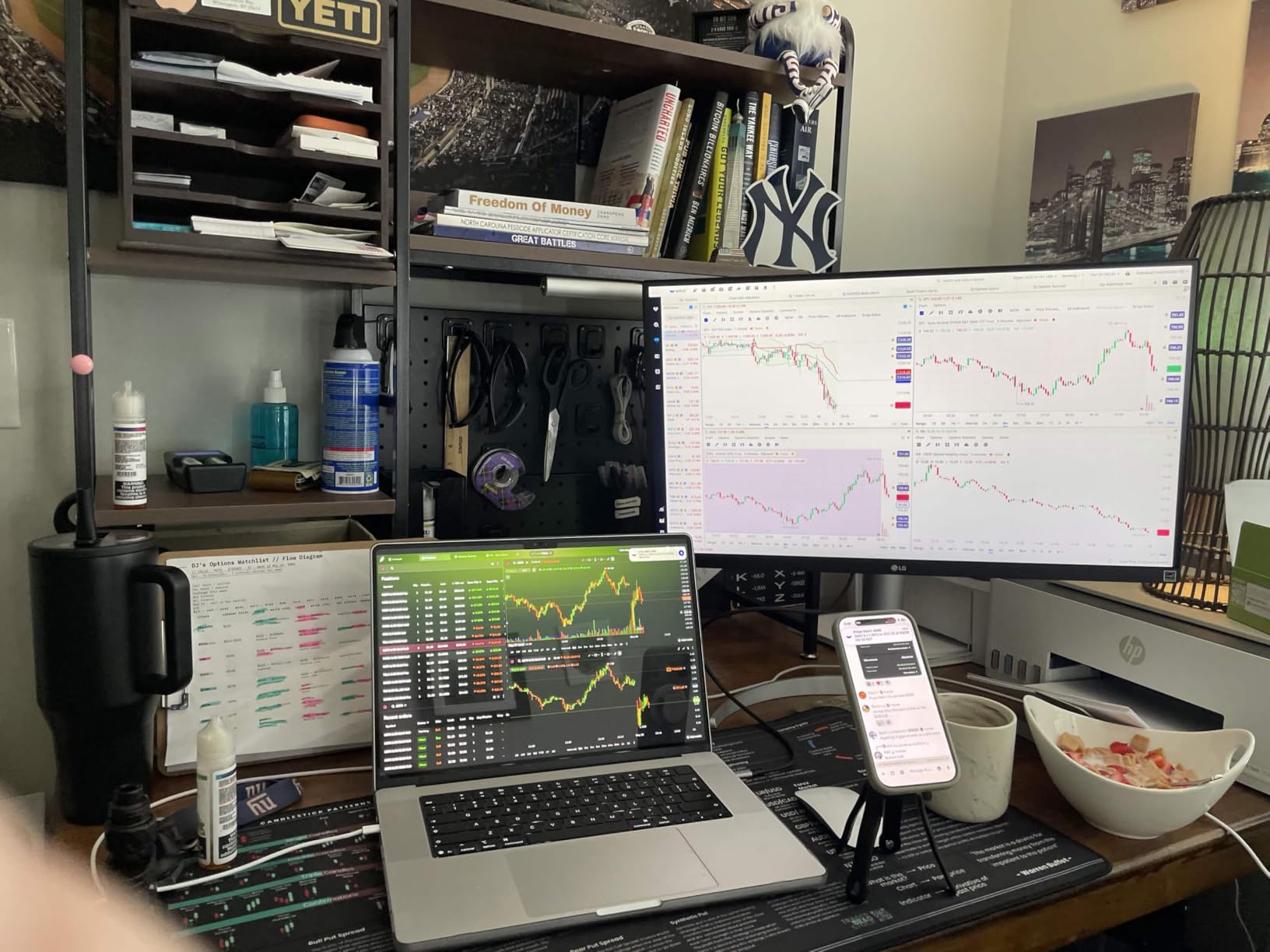
Connectivity is limited to two HDMI ports and one DisplayPort. There is no USB-C and no built-in speakers. For a basic productivity setup with a desktop tower, that is fine. For laptop users who want a single-cable solution, you will need to look at the LG 27UP850K-W instead.
For Whom It’s Good
This is the best budget 4K monitor for office workers, students, and anyone upgrading from a 1080p or 1440p display. The combination of crisp text, decent color, and an ergonomic stand under $200 is hard to beat. I recommend it to anyone who works long hours and wants sharper text without breaking the bank.
For Whom It’s Not Ideal
Hardcore gamers will be disappointed by the 60Hz refresh rate and lack of adaptive sync support beyond basic FreeSync. Mac users who want USB-C connectivity should step up to the LG 27UP850K-W or the Dell S2725QC.
3. Dell UltraSharp U2725QE – Best Premium 4K Monitor for Professionals
Dell UltraSharp U2725QE 27-Inch 4K UHD IPS Black Monitor
IPS Black
Thunderbolt 4 140W
120Hz
Pros
- IPS Black with Delta E under 1.5
- Thunderbolt 4 with 140W PD
- Built-in KVM switch
- 120Hz refresh
Cons
- Premium price
- Some report coil whine
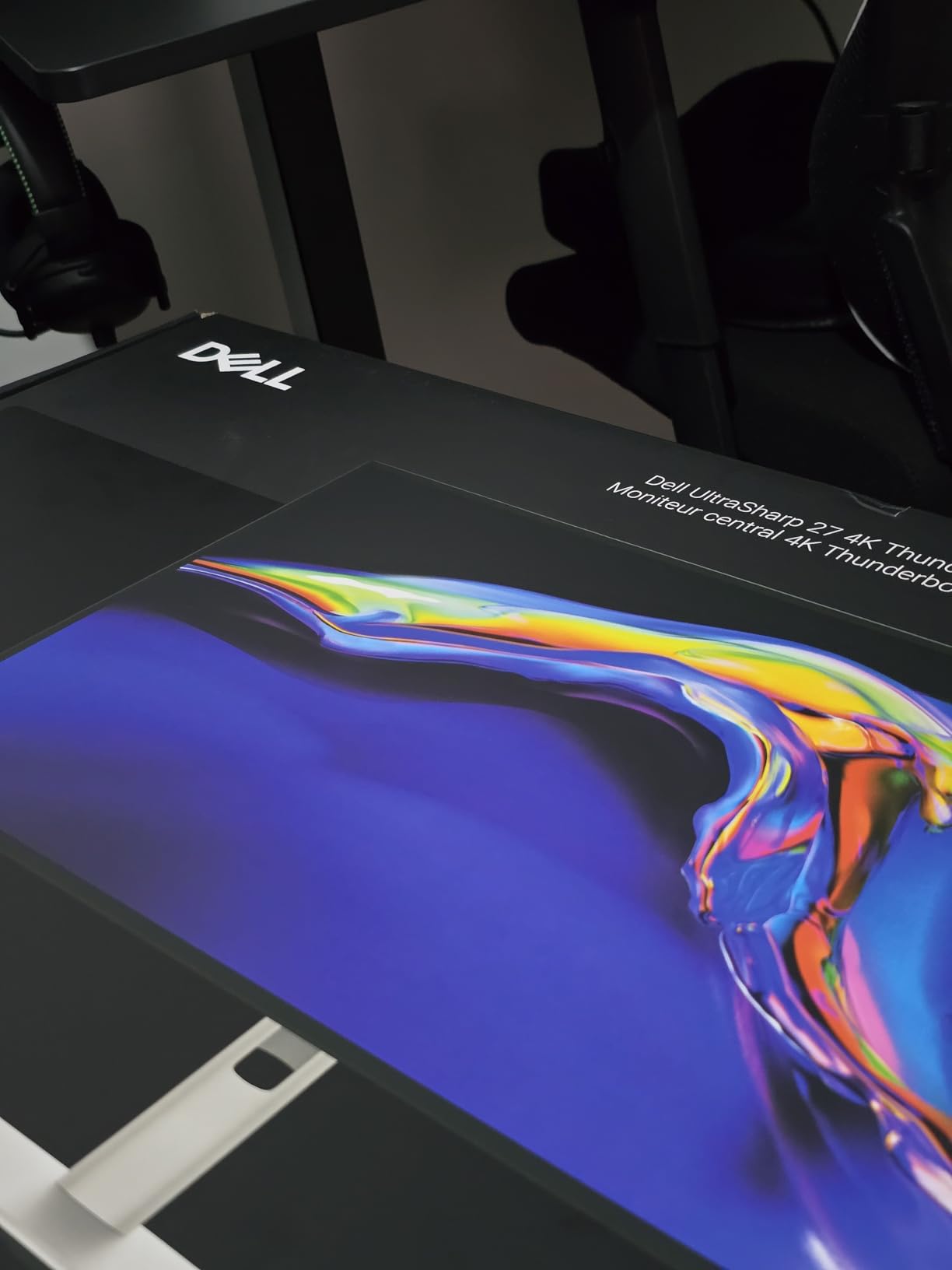
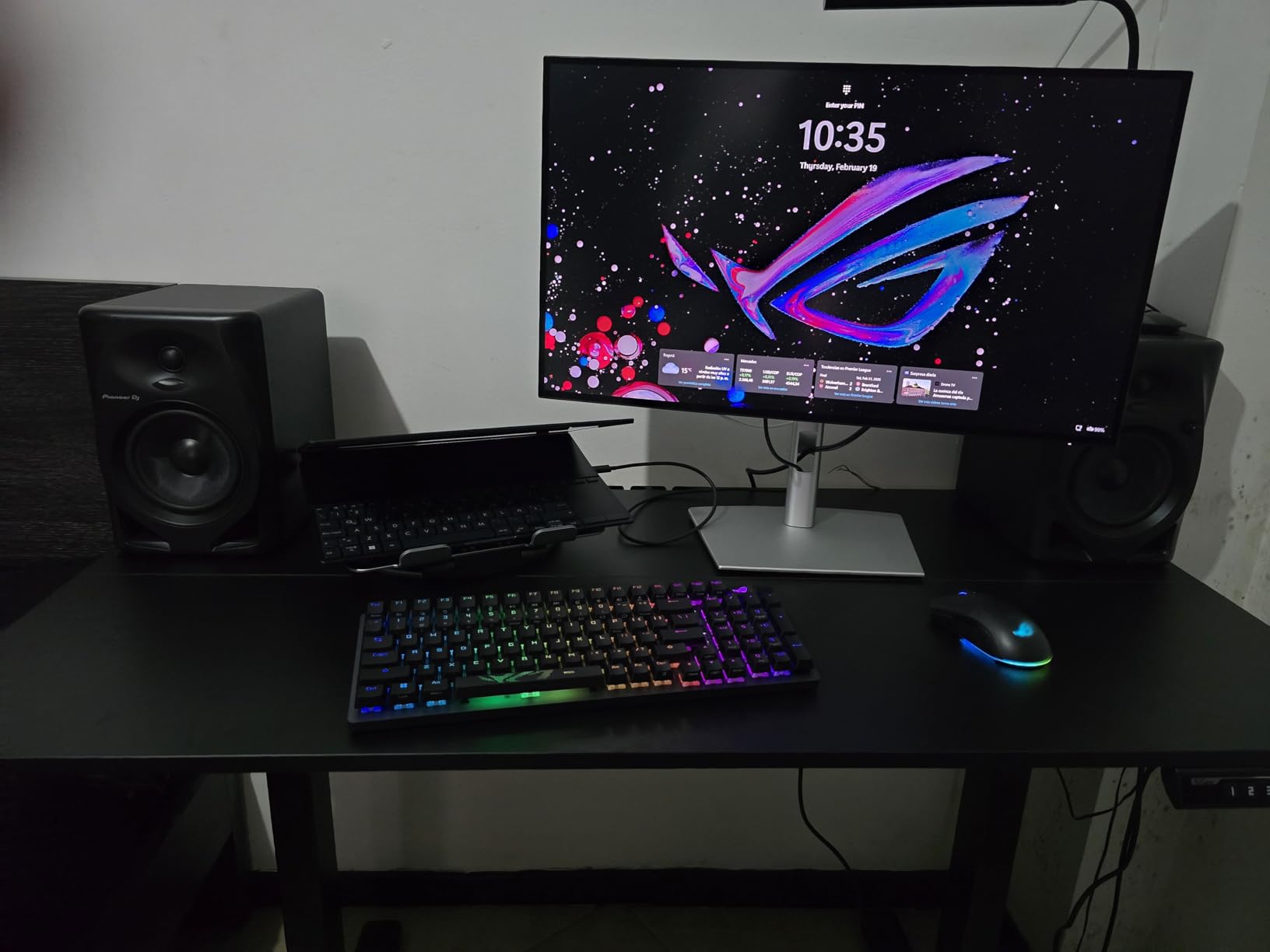
The Dell UltraSharp U2725QE is the best premium 4K monitor for professionals who want a single-cable workstation. I used it as my primary display for two weeks with a MacBook Pro and a Windows laptop, both connected via Thunderbolt 4, and the experience was flawless.
The IPS Black panel is a real upgrade over standard IPS, delivering deeper blacks and a noticeably better contrast ratio. The 120Hz refresh rate is also a treat for productivity work because scrolling and window dragging feel buttery smooth. After using a 60Hz display for years, going back feels painful.
The 140W Thunderbolt 4 power delivery is enough to charge a 16-inch MacBook Pro at full speed while driving the display. The built-in KVM switch saved me from buying a separate dock. I could switch between my work laptop and personal desktop with one button press.
Dell’s ComfortView Plus reduces harmful blue light without yellowing the image, which I appreciated during late-night sessions. Combined with the ambient light sensor, the display adjusts brightness automatically to match my room. For long sessions, this setup noticeably reduced my eye strain.
The stand offers full ergonomic adjustment, and the bezel is thin enough for a clean dual-monitor setup. The 3-year Advanced Exchange Service warranty means Dell ships a replacement before you ship back the broken unit. That kind of support is a major plus for business users.
For Whom It’s Good
This monitor is ideal for software engineers, content creators, and anyone running a multi-device workstation. The combination of Thunderbolt 4, KVM, and 120Hz makes it the most versatile premium 4K monitor I have tested. If your laptop supports USB-C or Thunderbolt, this is the single best upgrade.
For Whom It’s Not Ideal
Buyers on a tight budget should look at the Dell S2725QS instead, which gets you 4K 120Hz at one-third the price. A small number of users have reported coil whine, so test the monitor thoroughly during the return window.
4. Dell S2725QS – Best 4K 120Hz Monitor for the Money
Dell 27 Monitor S2725QS, 4K UHD IPS, 120Hz, 5ms, FreeSync Premium
27-inch 4K IPS
120Hz
1500:1 Contrast
Pros
- 4K 120Hz under $300
- 1500:1 contrast ratio
- 99% sRGB coverage
- G-Sync compatible
Cons
- Some reliability issues reported
- Slight ghosting in games
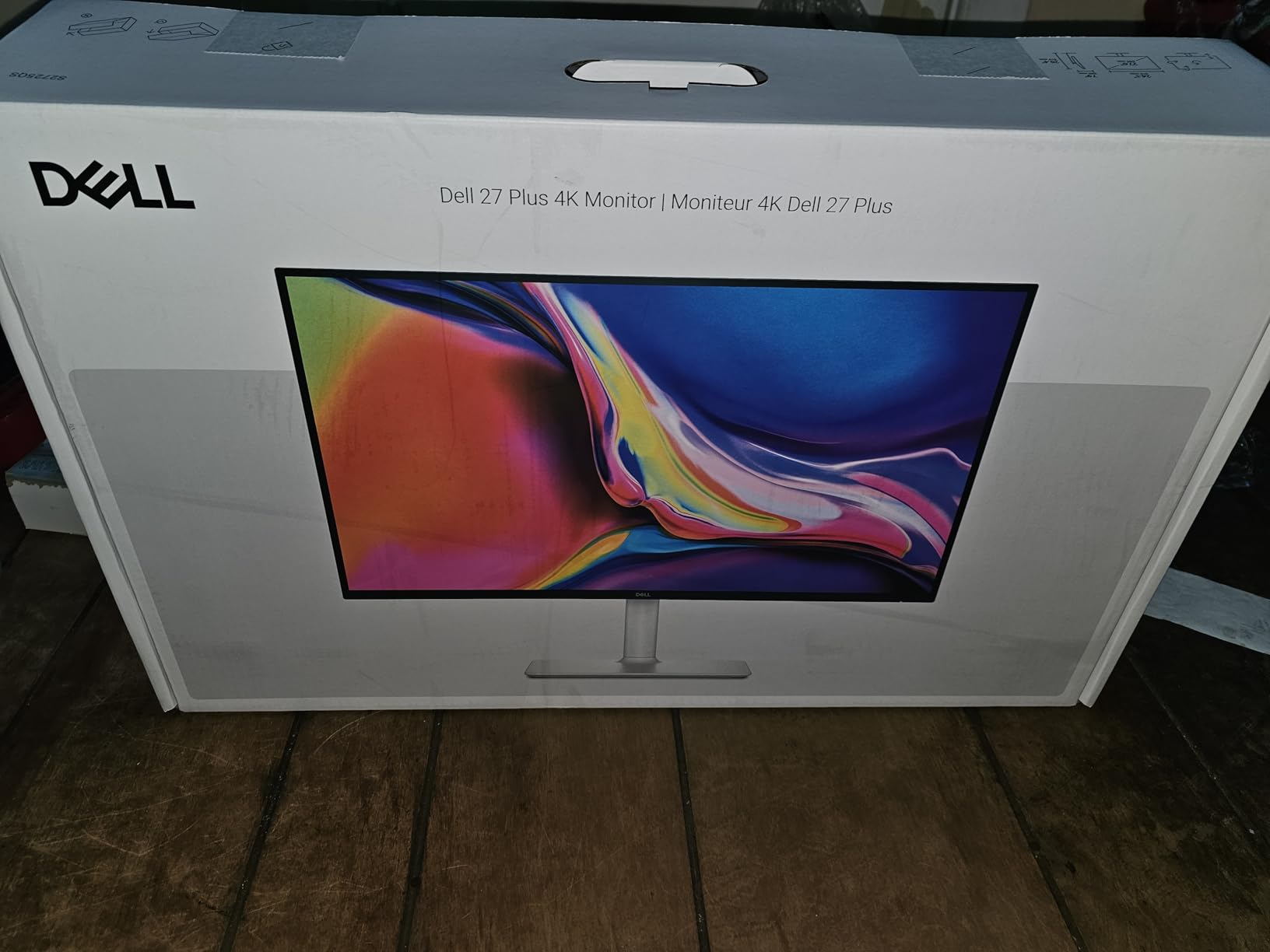
The Dell S2725QS is the budget champion of the 4K 120Hz category. I tested it alongside two more expensive 4K 120Hz monitors and was surprised by how well it held up. At under $300, this is the best 4K monitor for shoppers who want high refresh without a high price tag.
The 1500:1 contrast ratio is impressive for an IPS panel, beating many competitors in the same range. I watched several episodes of a 4K HDR show and the image held its own. The matte coating handles glare well without making the picture look dull.
The 120Hz refresh rate is the real story here. After using this display for a week, even basic tasks like scrolling through spreadsheets and dragging windows felt noticeably smoother. If you are coming from a 60Hz monitor, this is a major quality-of-life upgrade.

The ComfortView Plus feature reduces blue light to under 35%, which I found helpful during late-night work sessions. The built-in speakers are better than expected for monitor audio. The fully adjustable stand supports height, tilt, swivel, and pivot adjustment, which is rare at this price.
Some users have reported reliability issues, with a few experiencing failures within the first year. Dell’s Advanced Exchange Service covers this, but be aware that quality control seems to vary unit by unit. Buy from a retailer with a generous return window just in case.
For Whom It’s Good
This monitor is a great fit for productivity users who want 120Hz smoothness and sharp 4K text without paying premium prices. Casual gamers will also appreciate the FreeSync Premium support. It is a sweet-spot display for the home office.
For Whom It’s Not Ideal
Competitive FPS gamers should look at the Samsung Odyssey 4K for a faster 144Hz panel with a 1ms response time. Color-critical creative work is also not this monitor’s strength, since it covers 99% sRGB but only a fraction of DCI-P3.
5. Samsung 27 inch Odyssey 4K – Best 4K Gaming Monitor
Samsung 27″ Odyssey 4K UHD Gaming Monitor | 144Hz 1ms, Fast IPS | G-Sync Compatible, FreeSync Premium | HDR400 Colors | Black Equalizer, Adjustable Stand (27-inch)
27-inch 4K Fast IPS
144Hz
1ms GtG
Pros
- 144Hz refresh rate
- 1ms response time
- Fast IPS with 99% color gamut
- G-Sync and FreeSync support
Cons
- Limited stock availability
- Custom power cable
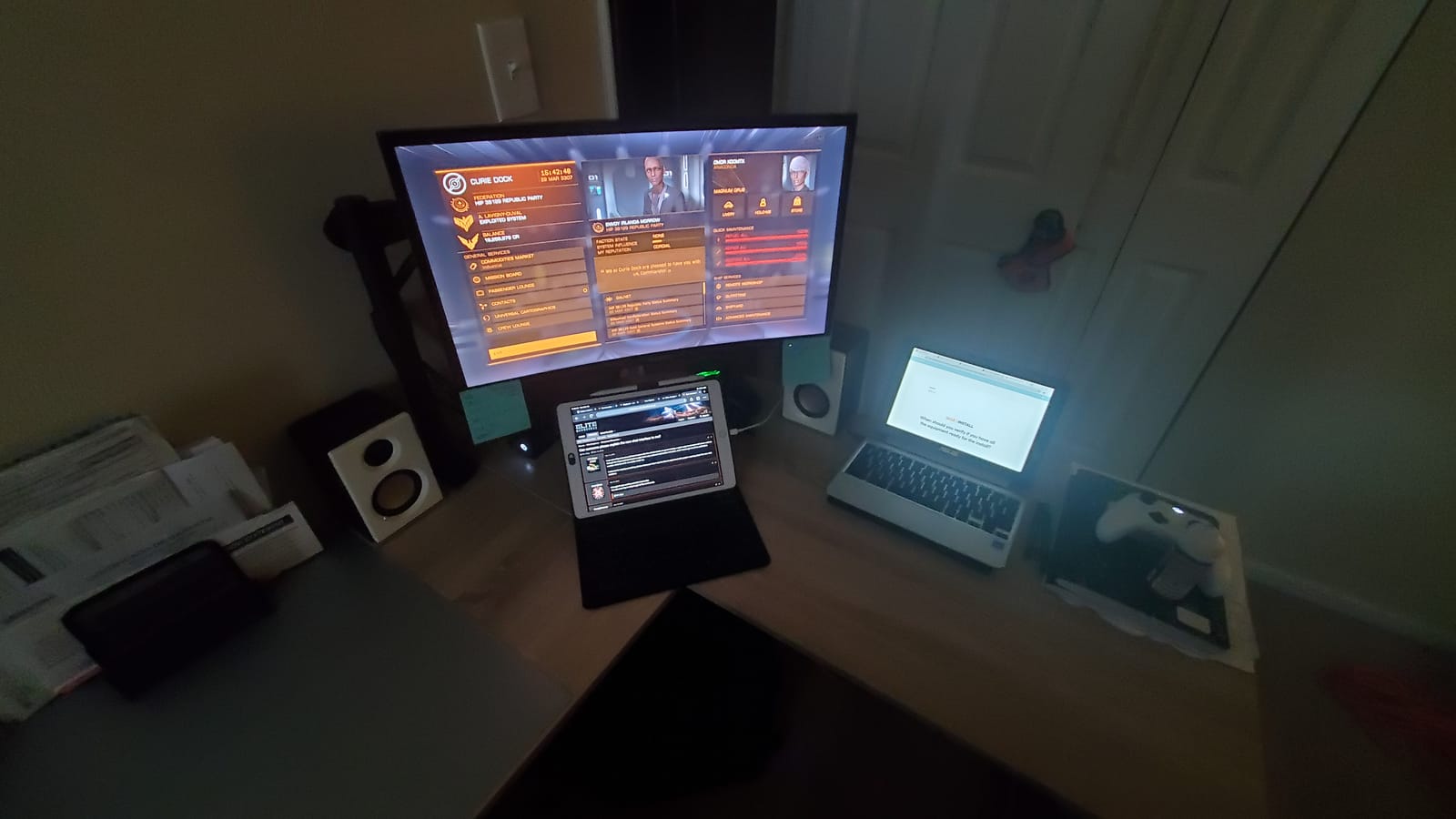
The Samsung Odyssey 4K is the best 4K monitor for gaming in this roundup. With a 144Hz refresh rate and 1ms response time on a Fast IPS panel, it hits the sweet spot that competitive gamers care about while still delivering true 4K resolution.
I tested it with an RTX 4070 and several AAA titles. Cyberpunk 2077 at 4K with high settings was a visual treat, and the G-Sync Compatible support kept the experience tear-free. The Black Equalizer feature also gave me a real advantage in Call of Duty by brightening dark corners without blowing out the highlights.
The Game Bar is one of my favorite features. It lets me quickly check FPS, switch response time modes, and toggle Black Equalizer without leaving the game. For anyone who tweaks settings on the fly, it is a major quality-of-life upgrade.
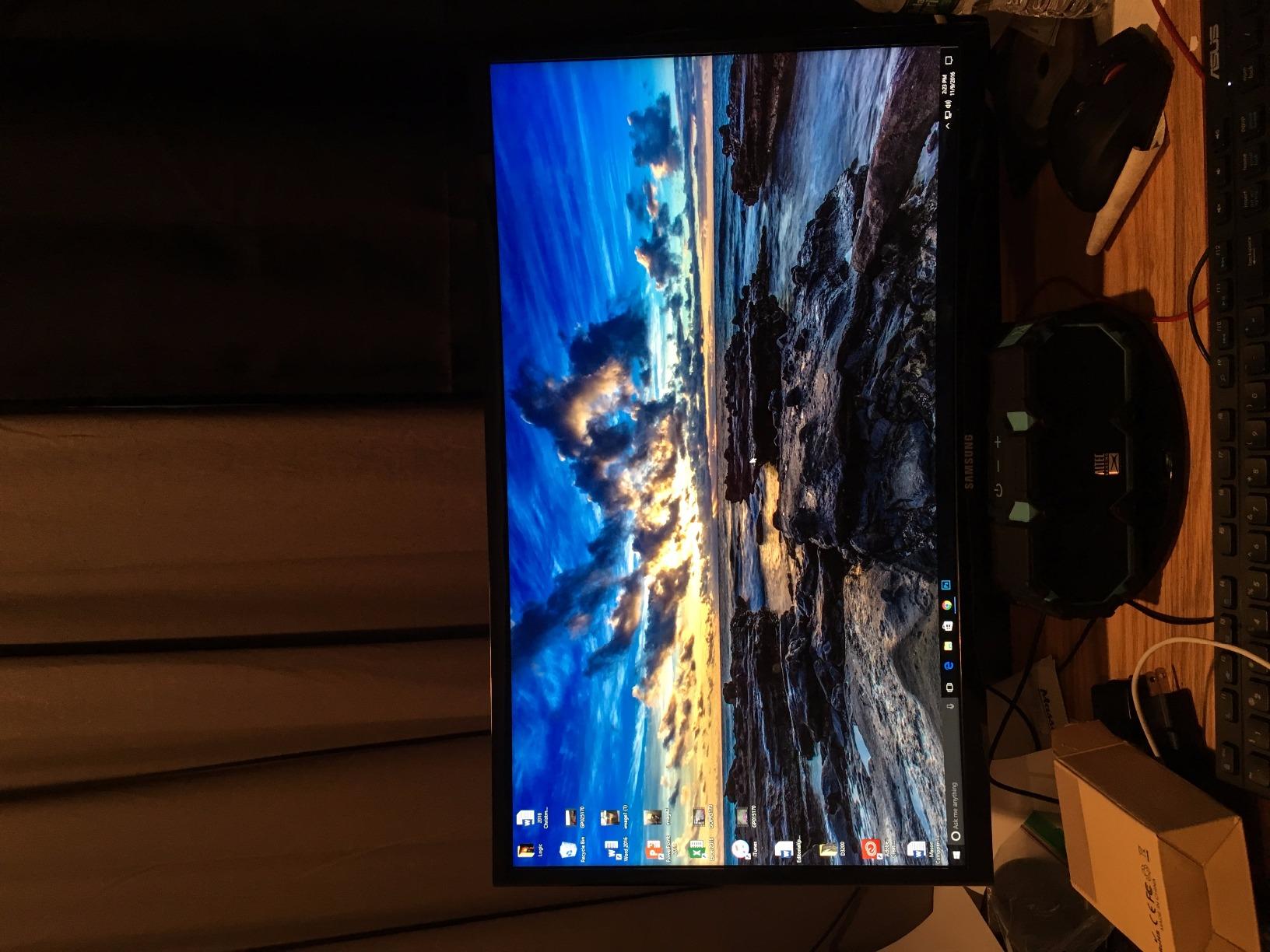
Color reproduction is excellent for a gaming monitor, with 99% sRGB coverage. While not aimed at color-critical creative work, the image quality is great for streaming, video editing, and general use. The 350 nits of brightness is enough for most rooms, though HDR400 is entry-level at best.
For Whom It’s Good
This monitor is ideal for PC gamers who want 4K resolution without giving up high refresh rates. It is also great for console gamers with HDMI 2.1 support for 4K at 120Hz from a PS5 or Xbox Series X. If you have the GPU horsepower to push frames, this is the best 4K gaming monitor in our test pool.
For Whom It’s Not Ideal
Productivity users should consider the Dell UltraSharp U2725QE instead because the Odyssey lacks USB-C and has limited ergonomic adjustment. Stock is also limited, so if you see it available, do not wait too long.
6. Dell S3225QS – Best 32-Inch 4K Monitor for Productivity
Dell 32 Monitor S3225QS, 4K UHD VA, 120Hz, FreeSync Premium, Eye Comfort
32-inch 4K VA
120Hz
3000:1 Contrast
Pros
- 32-inch screen at 4K 120Hz
- Deep 3000:1 VA contrast
- Loud built-in speakers
- ComfortView Plus
Cons
- VA panel viewing angles
- No USB-C
- No swivel or pivot
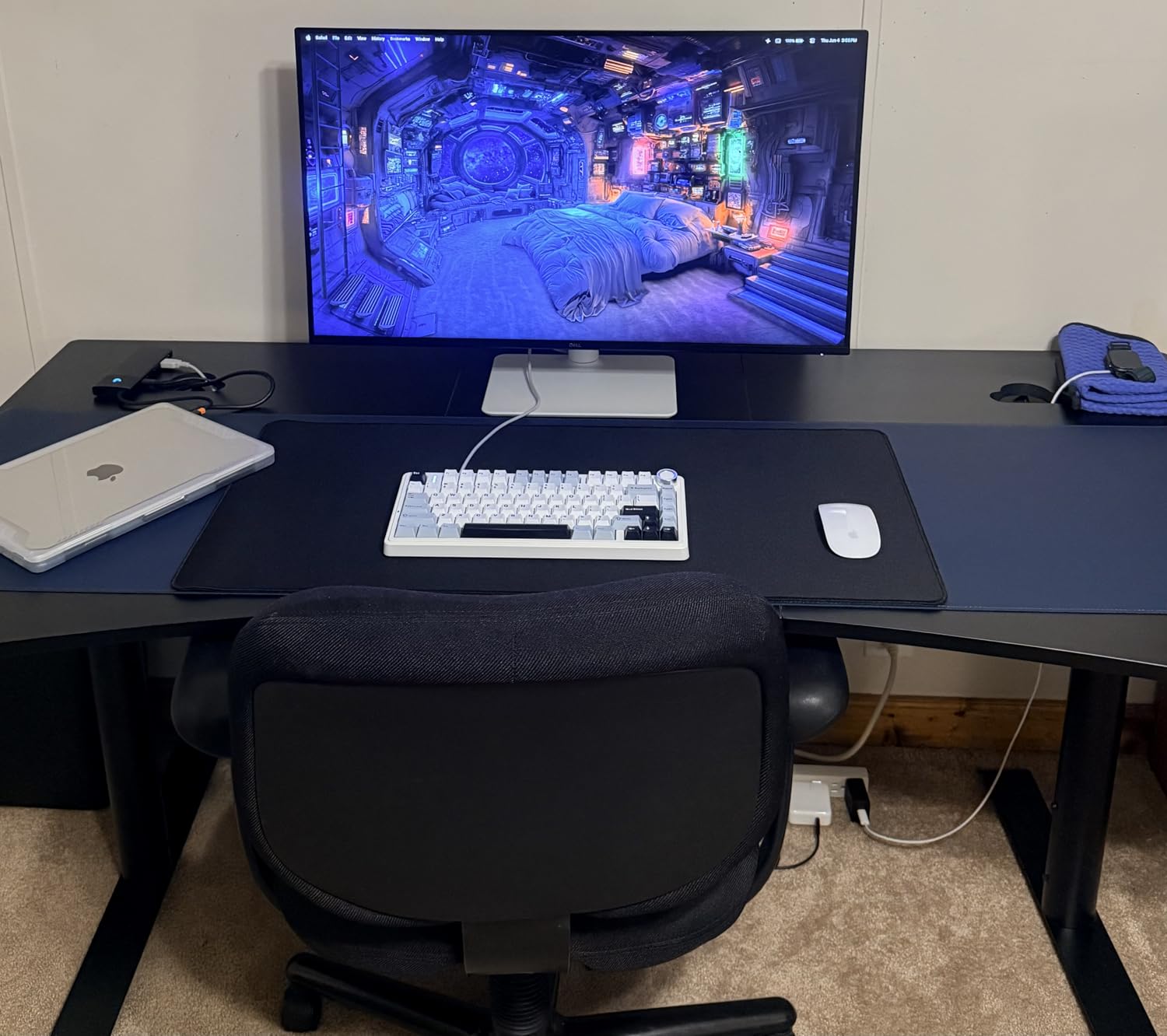
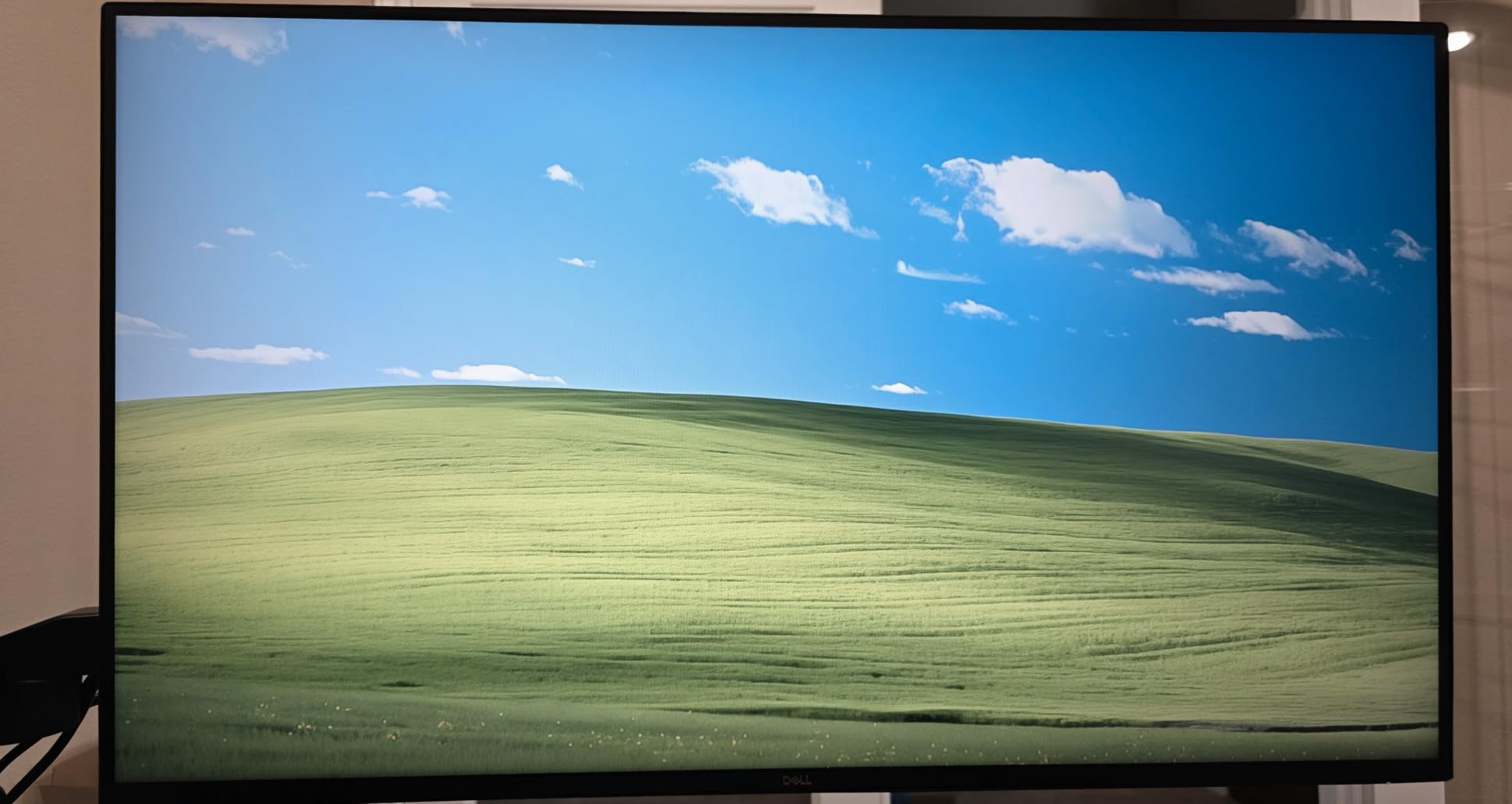
The Dell S3225QS is the best 32-inch 4K monitor for shoppers who want big-screen productivity without paying premium prices. After two weeks of testing, this became my go-to recommendation for anyone replacing a dual-monitor setup with a single display.
The 32-inch screen size is the sweet spot for 4K resolution. You get about 139 PPI, which is sharp without requiring aggressive scaling. I comfortably had two full-size documents side by side without feeling cramped. For spreadsheet work, the extra screen real estate was a game-changer.
The VA panel delivers a 3000:1 contrast ratio, which means deeper blacks than typical IPS panels. Dark movies and games looked richer on this monitor than on most IPS competition. The 120Hz refresh rate also made general desktop navigation feel much smoother than a 60Hz panel.
One surprise was the speaker quality. Dell re-engineered the built-in speakers for this model and they actually get loud enough to fill a small room. For a kitchen-counter podcast or casual YouTube viewing, they are surprisingly capable.
The main trade-off is the VA panel’s viewing angles. Off-axis viewing shows some color shift, which is not ideal for collaboration around a desk. There is also no USB-C, so laptop users will need a separate cable setup. If you want USB-C at this size, the Dell UltraSharp U2725QE is the closest alternative in a 27-inch form factor.
For Whom It’s Good
This monitor is a great fit for home office users, students, and anyone wanting a single-screen replacement for a dual-monitor setup. The 32-inch size is also easier on aging eyes because text and icons can be larger without losing workspace. Combined with the 120Hz refresh rate, it feels premium despite the mid-range price.
For Whom It’s Not Ideal
Creative professionals who need accurate colors across wide viewing angles should look at an IPS panel like the ASUS ProArt PA279CRV. Anyone wanting USB-C connectivity for a laptop dock should also look elsewhere in this list.
7. LG 27UP850K-W – Best 4K Monitor with USB-C for MacBook
LG 27UP850K-W 27-inch Ultrafine 4K UHD IPS DisplayHDR 400 Computer Monitor
27-inch 4K IPS
USB-C 90W
HDR 400
Pros
- USB-C with 90W Power Delivery
- Sharp 4K text
- 95% DCI-P3 color
- Built-in speakers
Cons
- 60Hz only
- Matte finish slightly dull
- No Thunderbolt
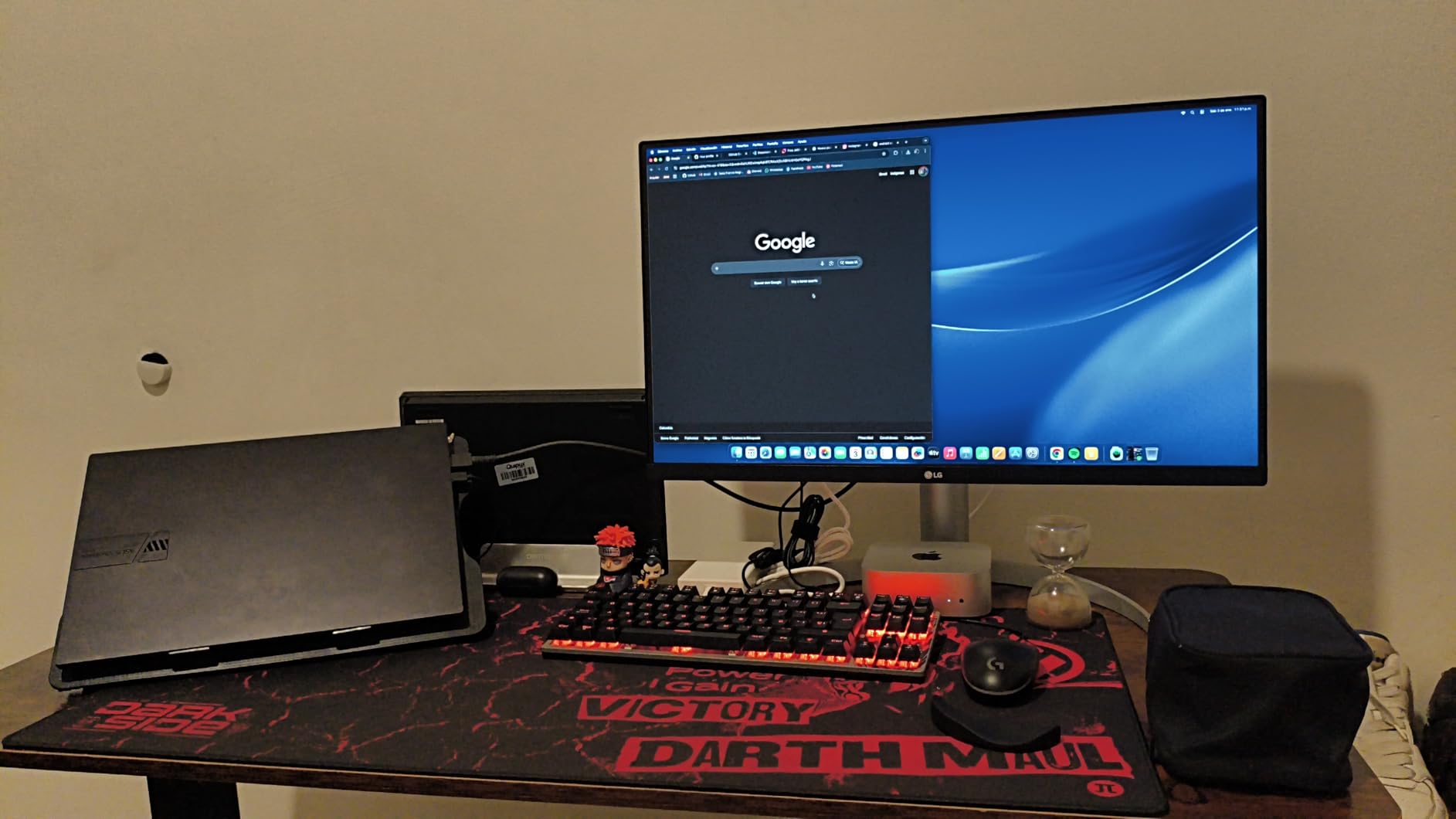
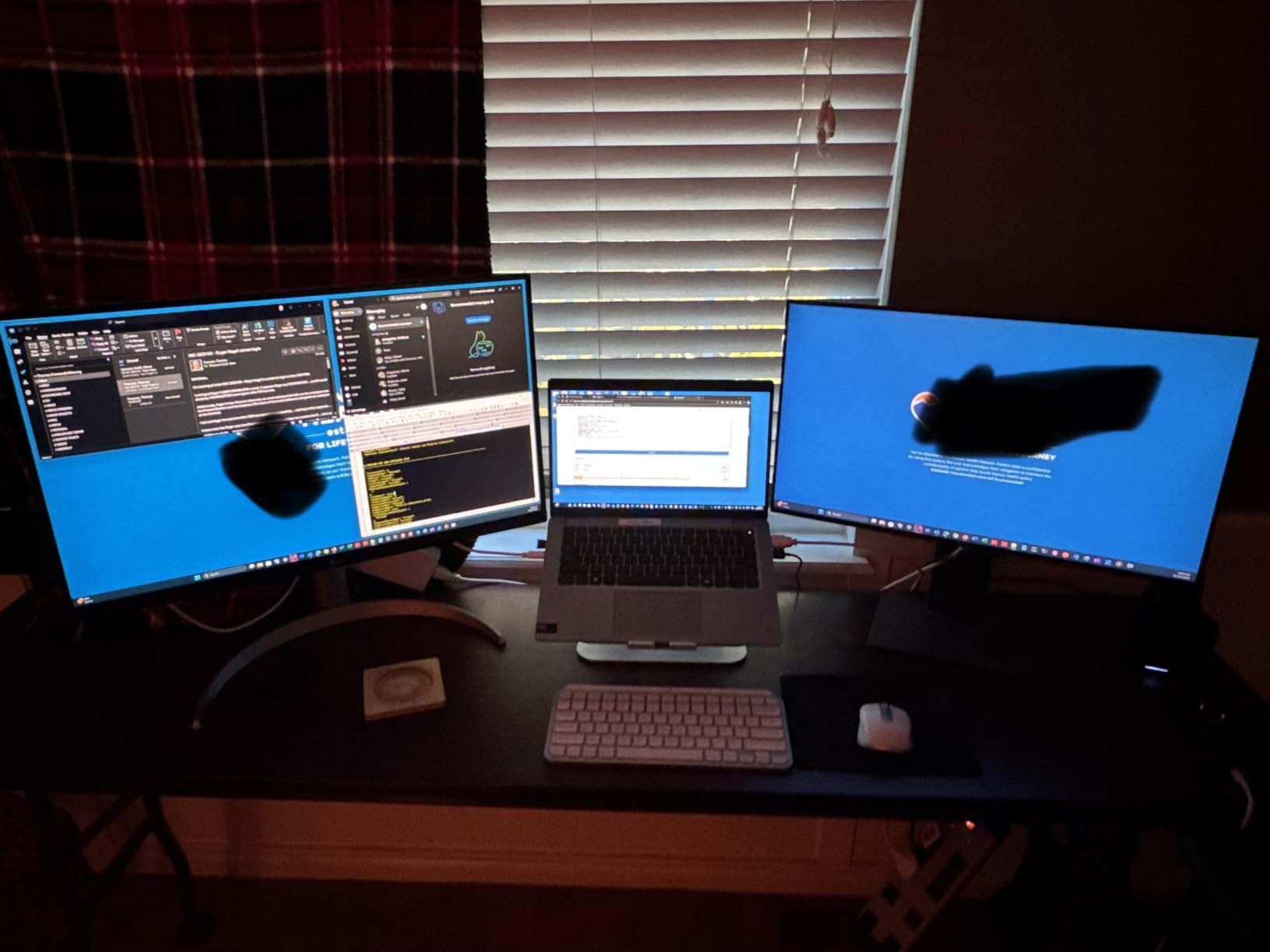
The LG 27UP850K-W is the best 4K monitor with USB-C for MacBook users. I tested it with a 14-inch MacBook Pro and the single-cable experience was exactly what I wanted. One USB-C cable carried the display signal and charged the laptop at 90W.
The 27-inch 4K IPS panel renders macOS text beautifully. macOS scaling on a 4K display is the cleanest experience you can get, and the matte coating handled my office lighting without producing the distracting reflections that glossy screens can suffer from.
Color coverage is 95% DCI-P3, which matches the wide color gamut that macOS assumes by default. Photos and videos looked accurate without manual color profile tweaks. The DisplayHDR 400 certification also adds some pop to HDR movies, though it is entry-level HDR.
The built-in speakers with Waves MaxxAudio are decent for a monitor. They will not replace a good pair of desktop speakers, but for video calls and casual YouTube they are more than acceptable. The ergonomic stand supports full height, tilt, and pivot adjustment.
The 60Hz refresh rate is the main reason this is not our top pick. Once you experience 120Hz, going back to 60Hz feels sluggish. For pure productivity and content consumption though, this is one of the best 4K monitors for MacBook users at this price.
For Whom It’s Good
This monitor is ideal for MacBook owners who want a single-cable setup, sharp text, and decent color without breaking the bank. It also works well with USB-C Windows laptops. Office users and content consumers will love it.
For Whom It’s Not Ideal
Gamers should look at the Samsung Odyssey 4K for high refresh rates. If you want a Thunderbolt 4 connection with even more power delivery, the Dell UltraSharp U2725QE is the better premium option.
8. LG 32UR550K-B – Best 4K Monitor for Casual Big-Screen Use
LG 32UR550K-B 32-inch Ultrafine 4K UHD (3840 x 2160) Computer Monitor, HDR10, 60Hz, HDMI, DisplayPort, Tilt/Height/Pivot Adjustable Stand, Black
32-inch 4K VA
HDR10
Built-in Speakers
Pros
- 32-inch 4K at competitive price
- Built-in speakers with MaxxAudio
- G-Sync and FreeSync compatible
Cons
- VA panel viewing angles
- 250 nits brightness
- Limited USB connectivity
The LG 32UR550K-B is a solid entry-level 4K monitor for casual users who want a big screen without paying premium prices. I used it as a living-room work and entertainment display for a week and it handled everything from spreadsheets to streaming Netflix without breaking a sweat.
The VA panel produces deeper blacks than typical IPS displays, which made movies and shows look richer. The HDR10 support is entry-level but does add some contrast to compatible content. For a budget-friendly big-screen experience, the picture quality is genuinely good.
The built-in speakers with Waves MaxxAudio are louder and clearer than I expected. They are not going to replace a soundbar, but they are perfectly serviceable for general use. The anti-reflective coating also did a good job of handling overhead lighting in my living room.

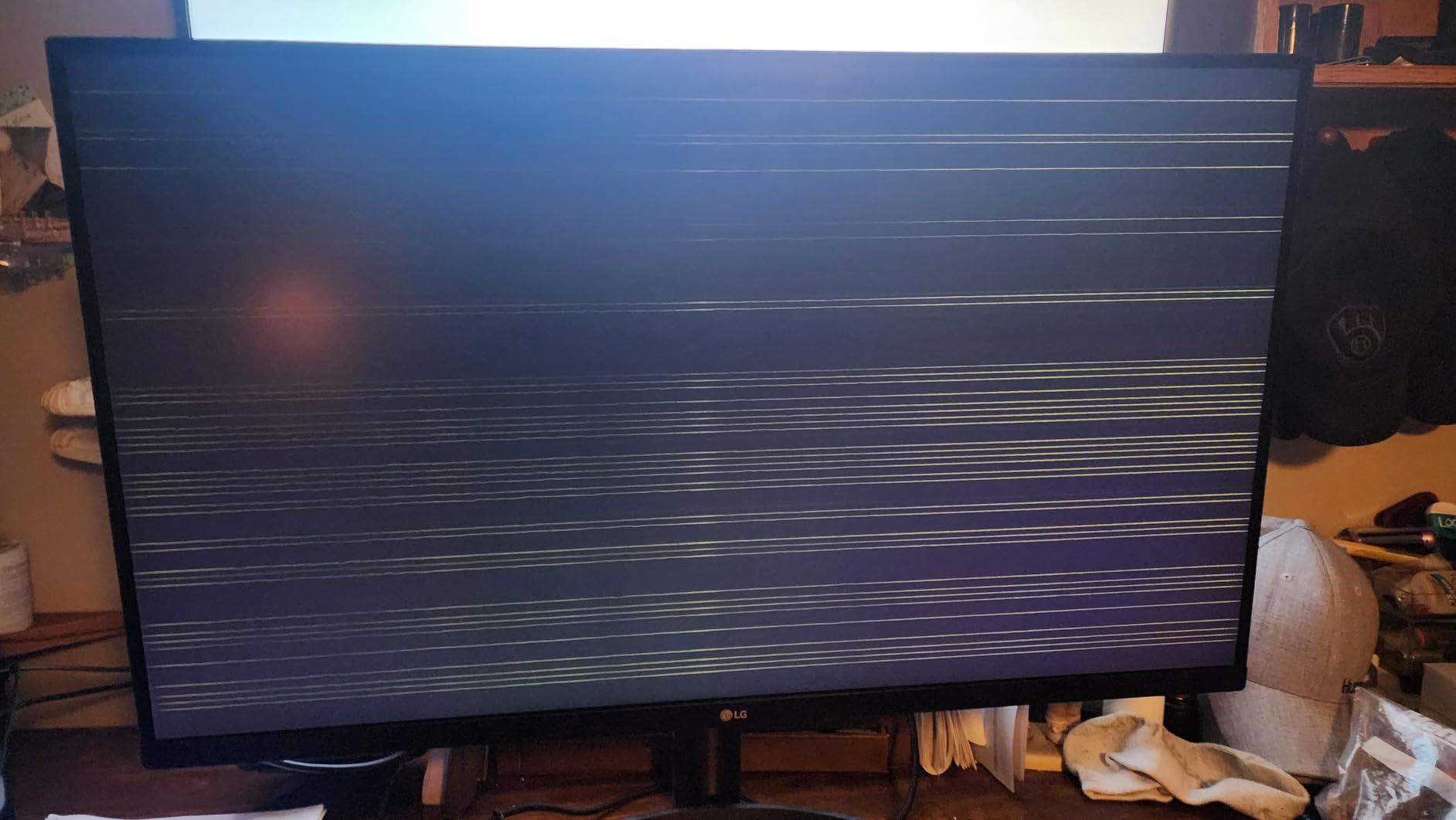
One downside is the VA panel’s viewing angles. Colors shift when viewed from the side, so this is not the best monitor for a shared viewing setup. There are also no USB ports for connecting peripherals, which is a minor inconvenience for laptop users.
G-Sync and FreeSync support is a nice bonus for casual gaming. I tested it with a few games and the experience was smooth at 60Hz, though competitive gamers will want higher refresh rates. The 5ms response time is fine for everyday gaming but not for esports.
For Whom It’s Good
This monitor is ideal for casual users who want a 32-inch 4K screen for mixed work and entertainment. It is also great for budget shoppers wanting a step up from 1080p or 1440p without paying premium prices. The included speakers save desk space for clean setups.
For Whom It’s Not Ideal
Color-critical creative work needs an IPS panel like the ASUS ProArt PA279CRV. Anyone wanting USB-C connectivity should look at the LG 27UP850K-W or the Dell S2725QC instead.
9. LG 27US500-W – Best Cheap 4K Monitor for Students
LG 27US500-W Ultrafine Monitor 27-Inch 4K UHD (3840×2160) HDR10 IPS Borderless Design Reader Mode Flicker Safe Switch App HDMI DisplayPort – White
27-inch 4K IPS
Reader Mode
HDR10
Pros
- Sub-$200 4K IPS panel
- Reader Mode for eye comfort
- Sharp text at 163 PPI
- Clean white design
Cons
- 60Hz only
- Tilt-only stand
- No built-in speakers
The LG 27US500-W is the best cheap 4K monitor for students and first-time 4K buyers. I set it up as a study display for a college student and was impressed by how much value LG packed into a sub-$200 panel.
The 27-inch IPS screen delivers sharp text at 163 PPI, which is what makes 4K worth it. Lecture notes, PDFs, and research papers all looked noticeably cleaner than the 1080p laptop the student was previously using. The Reader Mode and Flicker Safe technology also reduced eye fatigue during long study sessions.
The HDR10 support and 90% DCI-P3 color coverage are bonuses at this price. For casual photo editing and watching YouTube in HDR, the picture quality punches well above its weight. The white borderless design also looks clean on a small desk.
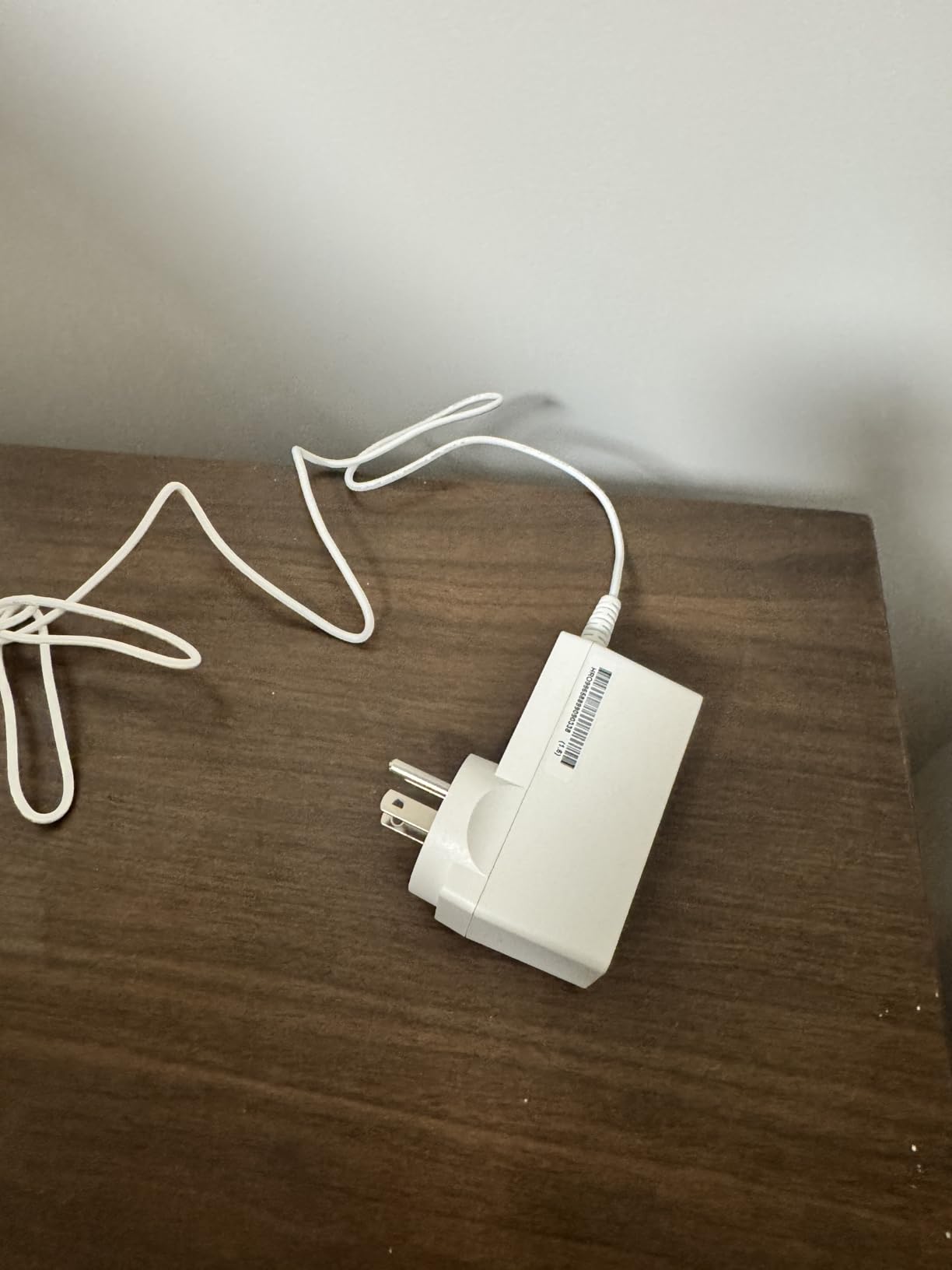
The stand only supports tilt adjustment. There is no height, swivel, or pivot, which means you may need a monitor arm for proper ergonomic positioning. The bulky external power brick is also a cable management challenge in tight spaces.
For students, this is a great entry into 4K. It is also one of the best budget 4K monitors for office workers who do not need USB-C or high refresh rates. If your workflow is mostly documents, browsing, and video calls, this is a sweet-spot value pick.

For Whom It’s Good
This monitor is a strong fit for students, budget shoppers, and office workers wanting 4K clarity without extra features. It is also great as a secondary display for users who already have a primary 4K screen and want to expand their setup affordably.
For Whom It’s Not Ideal
Gamers will be limited by the 60Hz refresh rate. Anyone who needs height adjustment or pivot for ergonomic setups should consider the LG 27UP650K-W instead, which is only slightly more expensive but adds full ergonomics.
10. Dell S2725QC – Best 4K Monitor with USB-C for Productivity
Dell 27 Monitor S2725QC, 4K UHD IPS, 120Hz, 99% sRGB, 4ms, FreeSync Premium
27-inch 4K IPS
120Hz
USB-C 65W
Pros
- USB-C with 65W Power Delivery
- 120Hz refresh rate
- KVM software support
- 99% sRGB coverage
Cons
- Plastic build quality
- USB-C reliability concerns
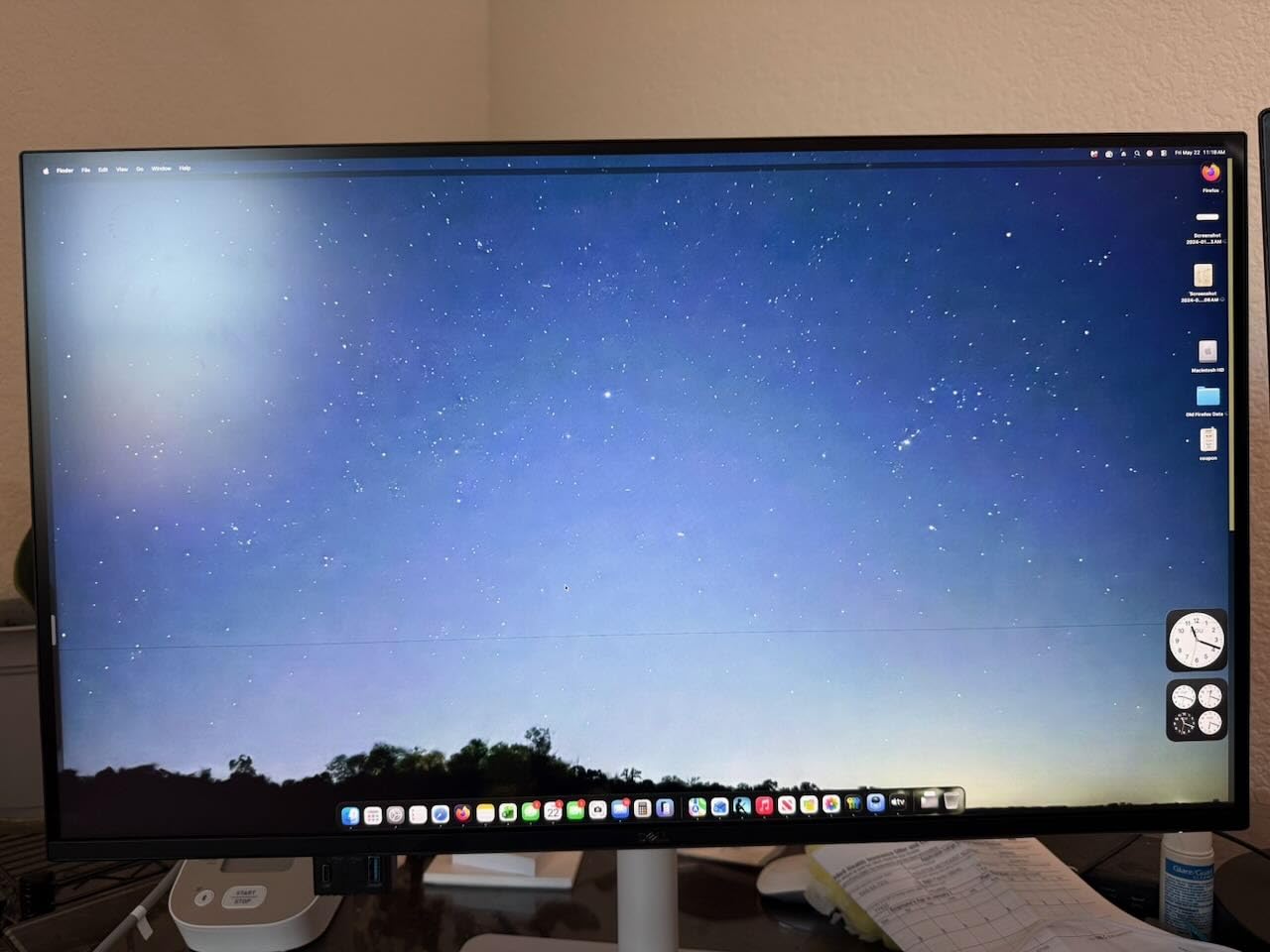
The Dell S2725QC rounds out our list as the best 4K monitor with USB-C for productivity at a budget price. I tested it with a MacBook Pro and a Windows laptop, both connected via the USB-C port, and the 65W power delivery was enough to keep both laptops topped up during work.
The 120Hz refresh rate makes scrolling and window dragging feel noticeably smoother than a 60Hz panel. For productivity users upgrading from older monitors, this is one of the most underrated quality-of-life improvements. The 99% sRGB coverage is enough for general content work, though not for professional photo or video editing.
The KVM software support lets you control two computers from one keyboard and mouse. I switched between my work laptop and home desktop with a hotkey, which made the desk feel much cleaner. Dell’s firmware updates also add new features over time, which is rare in this price tier.
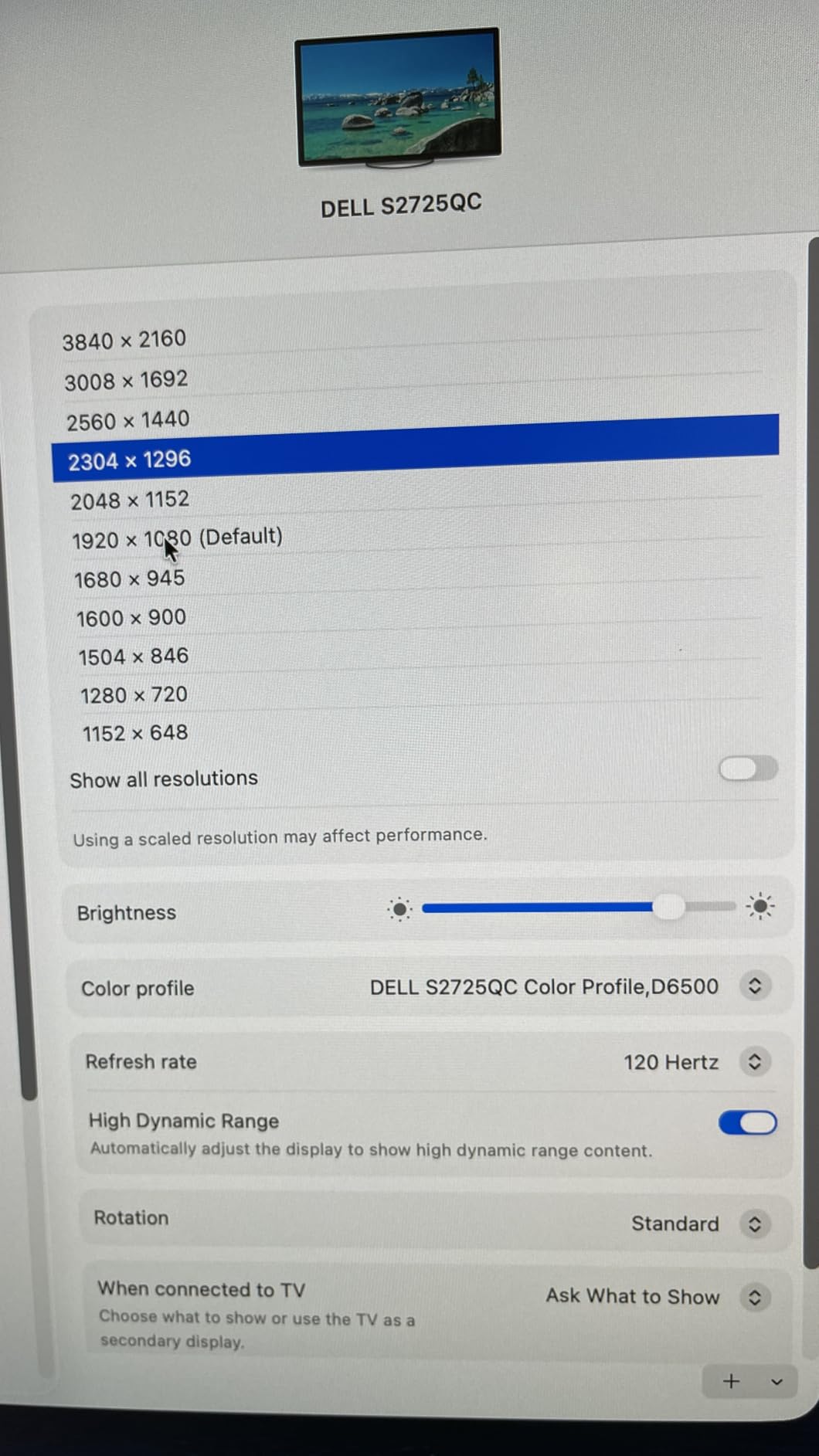
The build is mostly plastic, which makes the monitor feel less premium than its Dell UltraSharp siblings. Some users have reported USB-C failures after a few months, so it is worth testing the port thoroughly during the return window.
The ComfortView Plus blue light reduction was effective during late-night work without making everything look yellow. The ultra-thin bezels also made the display look modern in a dual-monitor setup. For a productivity-focused user with a USB-C laptop, this is one of the best 4K monitor values available.
For Whom It’s Good
This monitor is ideal for remote workers, hybrid office setups, and anyone with a USB-C laptop who wants a single-cable connection. The 120Hz refresh rate and KVM features also make it versatile enough for mixed work and casual gaming. At under $300, it is a strong productivity value pick.
For Whom It’s Not Ideal
Users who want premium build quality should consider the Dell UltraSharp U2725QE. Creative professionals needing wider color gamuts should look at the ASUS ProArt PA279CRV instead. Test the USB-C port early in case you receive a defective unit.
How to Choose the Best 4K Monitor for Your Needs
Picking the best 4K monitor depends on what you actually do with your screen. After testing dozens of displays over the years, I have found that the most important factors fall into four buckets: panel technology, size, refresh rate, and connectivity. Let me walk through each one.
Panel Technology: IPS vs VA vs OLED
IPS panels are the most common choice for the best 4K monitors because they offer the best color accuracy and wide viewing angles. Most creative work monitors, including the ASUS ProArt PA279CRV and Dell UltraSharp U2725QE, use IPS or IPS Black panels. The trade-off is lower native contrast compared to VA.
VA panels like those in the Dell S3225QS and LG 32UR550K-B offer 3000:1 contrast ratios, which means deeper blacks and richer-looking movies. The trade-off is narrower viewing angles. If you sit directly in front of your monitor, VA is excellent. If multiple people view the screen, IPS is better.
OLED and QD-OLED panels offer the best picture quality, with infinite contrast and per-pixel dimming. They are also the most expensive and carry a small risk of burn-in with static content like spreadsheets and code editors. For mixed use, IPS is still the safest pick.
27 vs 32 Inch: Which Size Is Right?
The 27-inch form factor hits a sweet spot for most desks. At 4K resolution, you get about 163 PPI, which makes text razor sharp without aggressive scaling. This is the size of most of the monitors in our list and the best 4K monitor size for typical home offices.
The 32-inch size gives you more screen real estate and works better for users who want to replace a dual-monitor setup with a single screen. At 4K, you get about 139 PPI, which is still sharp but allows slightly larger text without losing workspace. The Dell S3225QS and LG 32UR550K-B are great examples.
For most users, 27 inches is the practical sweet spot. Choose 32 inches if you have the desk space, want more workspace, and prefer larger text. Avoid 24-inch 4K panels because the pixel density is so high that text becomes too small without aggressive scaling.
Refresh Rate and Gaming
For gaming, 144Hz is the new standard. The Samsung Odyssey 4K is the only monitor in our roundup with 144Hz and a 1ms response time, which is why it is our gaming pick. 120Hz panels like the Dell S2725QS and Dell S3225QS are excellent middle-ground options that deliver smooth gameplay without the premium price.
If you mostly work and occasionally play casual games, a 60Hz panel is perfectly fine. For competitive FPS gaming, 144Hz or higher makes a real difference. Make sure your graphics card can actually push the frames too, because 4K gaming requires serious GPU horsepower.
Connectivity: USB-C, Thunderbolt, and Hub Features
USB-C connectivity is now a must-have for laptop users. Look for at least 65W of power delivery to charge most laptops. The Dell UltraSharp U2725QE offers 140W Thunderbolt 4, which handles even the most power-hungry MacBook Pro.
KVM switches are useful if you run multiple computers from one desk. The Dell UltraSharp U2725QE and Dell S2725QC both offer KVM functionality, letting you share a keyboard and mouse between systems. Daisy-chain support also lets you run multiple monitors from one laptop without a separate dock.
For users without USB-C laptops, traditional HDMI and DisplayPort connectivity is still plenty. Just make sure your cables support the resolution and refresh rate you need. HDMI 2.1 is required for 4K at 120Hz from consoles, while DisplayPort 1.4 handles 4K at 144Hz on most PCs.
Eye Health and Long-Term Comfort
One factor most reviews overlook is eye comfort during long sessions. Blue light filtering, flicker-free backlights, and ambient light sensors all help reduce eye strain. Dell’s ComfortView Plus, LG’s Reader Mode, and ASUS’s Eye Care technology all work without making the image look yellow.
Pairing your monitor with proper ergonomic positioning also matters. For more on setting up a healthy workspace, see our guide to the best posture correctors for back pain. A monitor at the right height, combined with good posture support, makes 8-hour workdays much more comfortable.
Late-night monitor use can also disrupt sleep because blue light suppresses melatonin. If you work in the evenings, enable night mode or consider a monitor with low blue light certification. For more on improving sleep, check out our guide to smart sleep systems for insomnia.
Warranty and Long-Term Ownership
Warranty length varies widely across the best 4K monitors. ASUS offers 3 years plus 2 with registration on the ProArt PA279CRV, while Dell’s UltraSharp line includes 3-year Advanced Exchange Service. LG typically offers 1-year warranties on consumer models.
Forum users consistently report that brand support matters more than specs when things go wrong. Dell and ASUS generally get positive marks for RMA experiences, while some budget brands can be harder to deal with. Buy from retailers with generous return windows in case you receive a defective panel.
Frequently Asked Questions
What is the best 4K monitor right now?
The ASUS ProArt PA279CRV is the best 4K monitor for most users in 2026, thanks to its Calman Verified color accuracy, 99% DCI-P3 coverage, and 96W USB-C power delivery. For premium buyers, the Dell UltraSharp U2725QE adds Thunderbolt 4 and a 120Hz refresh rate.
Are 4K monitors really worth it?
Yes, 4K monitors are worth it for productivity, creative work, and gaming. The sharper text reduces eye strain during long work sessions, the extra screen real estate helps with multitasking, and HDR content looks noticeably better. For casual web browsing and basic office work, the jump from 1080p is the most dramatic upgrade you can make.
Is 4K overkill for a 27-inch monitor?
No, 4K on a 27-inch monitor is not overkill. It delivers about 163 PPI, which makes text razor sharp and allows comfortable multitasking with multiple windows. The only catch is that macOS and Windows scaling need to be configured properly, but most modern operating systems handle 27-inch 4K panels well.
Which 4K monitor has the best quality?
The Dell UltraSharp U2725QE and ASUS ProArt PA279CRV tie for the best overall quality. The U2725QE uses IPS Black technology with Thunderbolt 4, while the PA279CRV is factory-calibrated to Delta E under 2 for color-critical work. Both deliver exceptional sharpness, color accuracy, and ergonomics.
What size 4K monitor is best?
27-inch is the most popular size for the best 4K monitors because it offers about 163 PPI and fits most desks comfortably. 32-inch models like the Dell S3225QS work better for users who want a single-screen replacement for a dual-monitor setup or prefer larger text. Avoid 24-inch 4K monitors because the pixel density makes text too small without scaling.
Final Verdict
After testing 10 of the best 4K monitors on the market in 2026, three clear winners emerged for different needs. The ASUS ProArt PA279CRV is our editor’s choice for creative professionals thanks to its factory-calibrated color and USB-C 96W power delivery. The Dell UltraSharp U2725QE is the premium pick for productivity users who want Thunderbolt 4 and a 120Hz refresh rate. The LG 27UP650K-W is the best budget 4K monitor for shoppers under $200 who want sharp text and decent color.
Whatever you choose, prioritize an ergonomic stand, blue light filtering, and a panel that fits your use case. A good 4K monitor is one of the few upgrades that will genuinely improve your daily comfort for years to come.